Volume-App help
Below are diagrams of the functions in each pane of the App
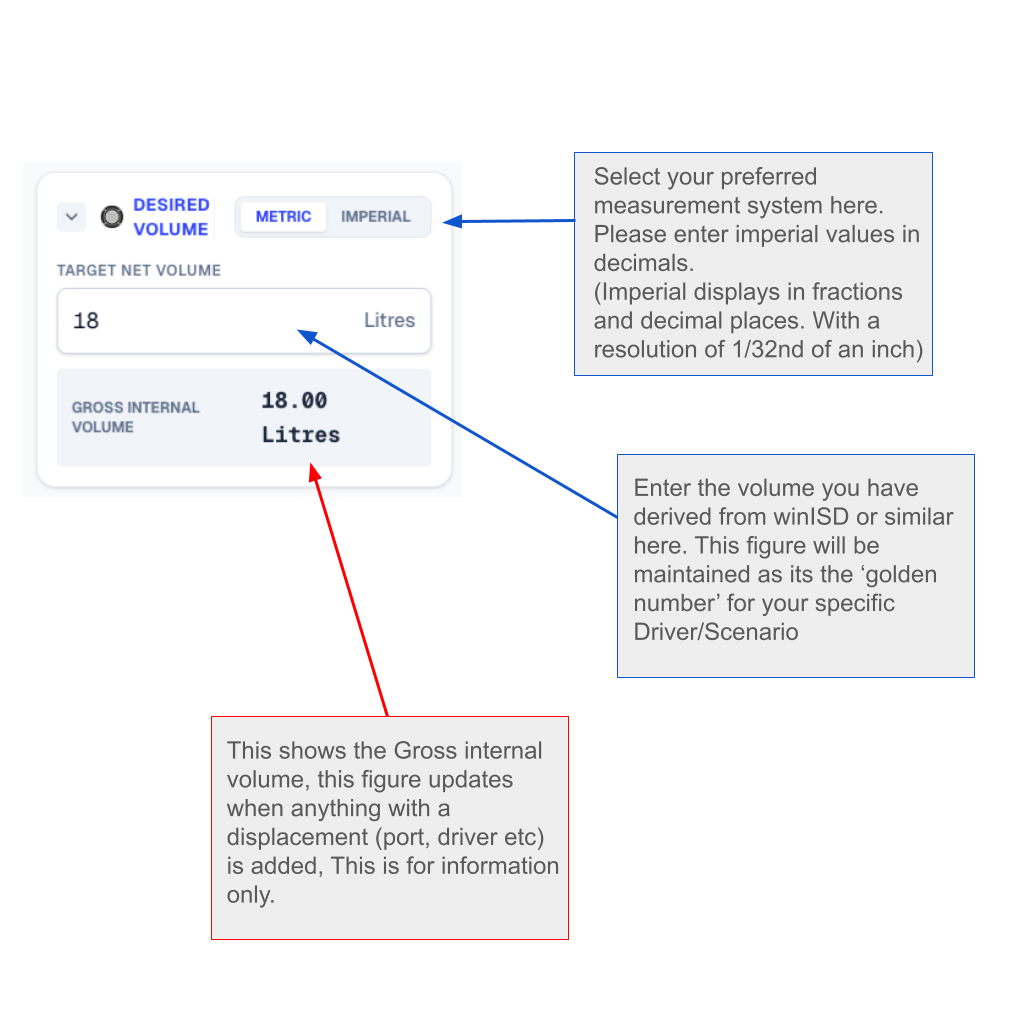
Desired Volume pane
At the core of Volume-App is the target net volume entry. Consider this your ‘golden number’. It has been derived from winISD or similar using the TS parameters of your chosen drivers to give you the tuning characteristics you desire in a cabinet. This figure will be maintained at all costs - when you add drivers (with known displacements), ports, or by any changes made to dimensions, panel thicknesses, orientations, etc. The more displacement information you give, the more accurate your loudspeaker will be when constructed.
Choose your measurement system here; enter imperial measurements in decimal. Volume-App has a maximum resolution of 1/32nd of an inch.
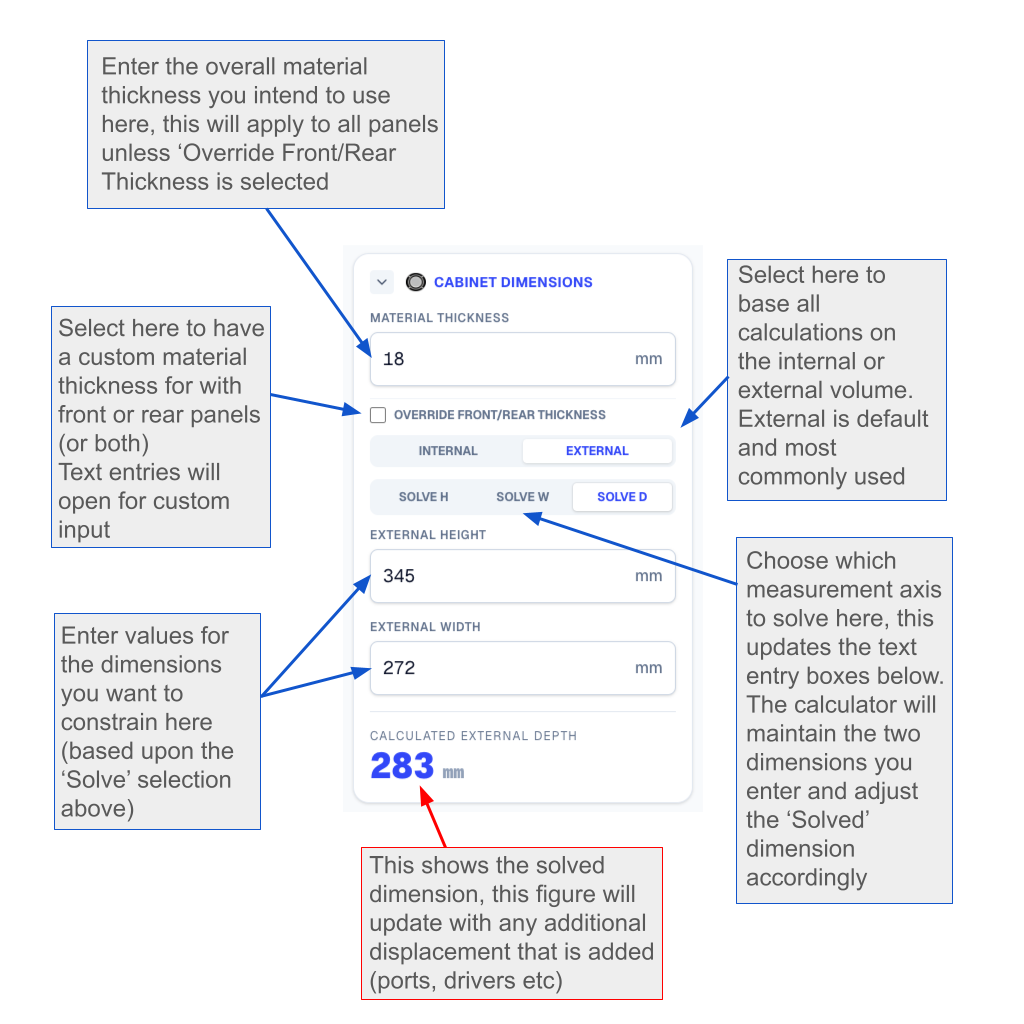
Cabinet dimensions pane
Based on the Internal volume you specified, you will be able to enter the material thickness you intend to use to construct your cabinet. You’ll enter 2 of the 3 dimensions of your cabinet, and you choose which dimension to solve. This is convenient if you know where your cabinet will be placed and any size restrictions that will apply. Volume-App will solve the third dimension and automatically ensure the Internal volume specified earlier is maintained. The visualiser will update with any changes made here. You will also be able to ‘Override’ the material thickness if you want either or both of the front and rear panels to be stiffer/stronger.
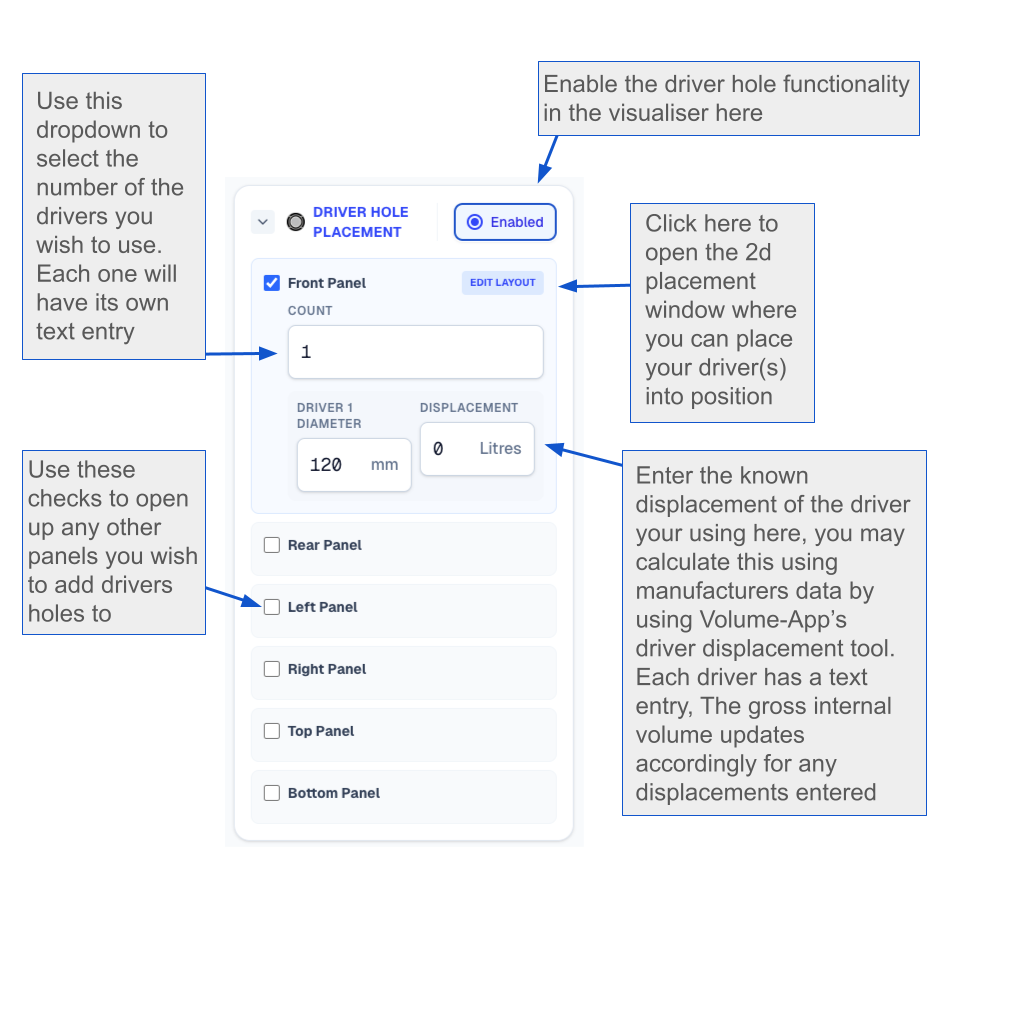
Driver hole placement pane
Add the driver hole diameters of any drivers you are using on any panel. Edit their location to visualise their placement. Please note this is only the cutout diameter, special care will be needed to ensure the outside dimensions of the speaker flanges fit in your final design, you will need to account for these using the manufacturers data.
Add in the volume displaced by your drivers (derived using the driver displacement calculator or by other means)
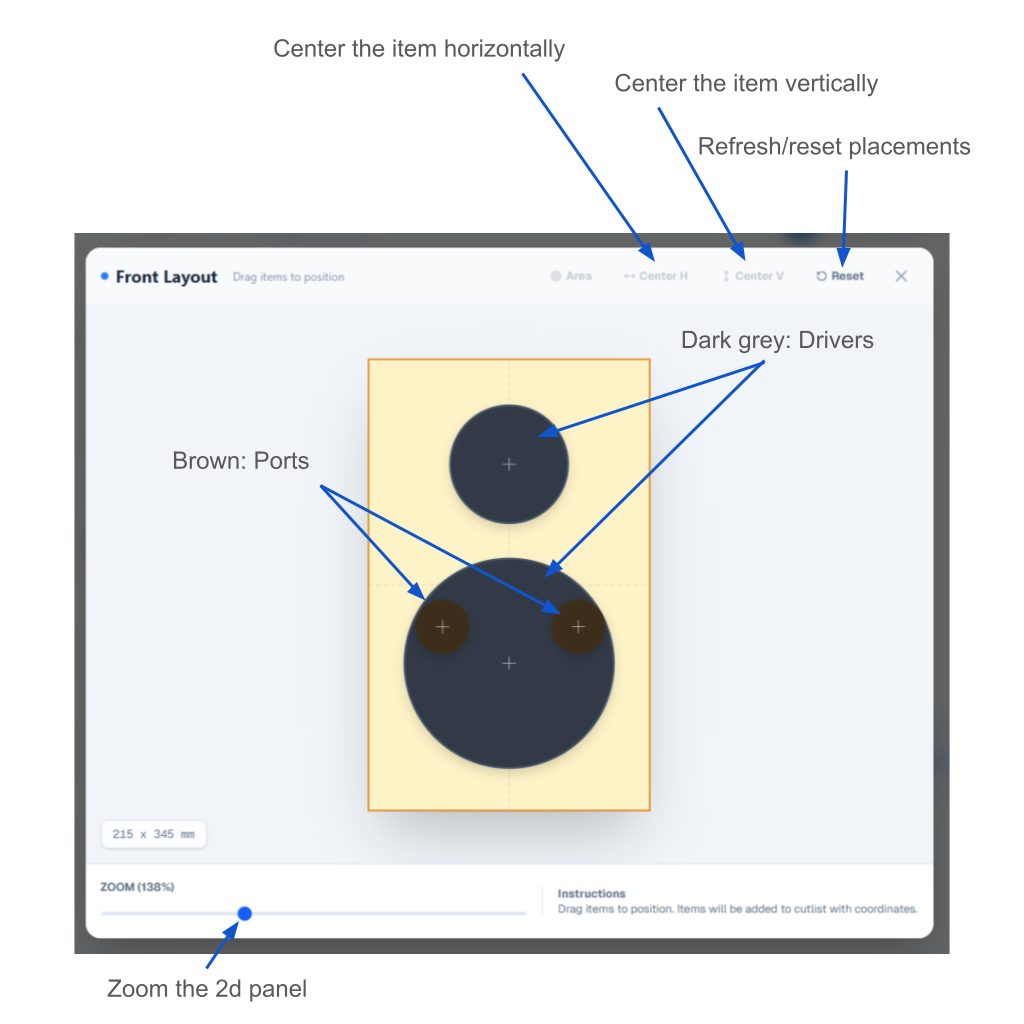
2d driver/port placement pane
Here you can edit the placement of the drivers you select/input accurately. When a round port is specified, it will also appear in this pane. Please note that this view resets if another driver is added to the panel after the fact, so all placements will need to be done again. If Drivers are placed on more than one panel, each panel has its own placement editor.
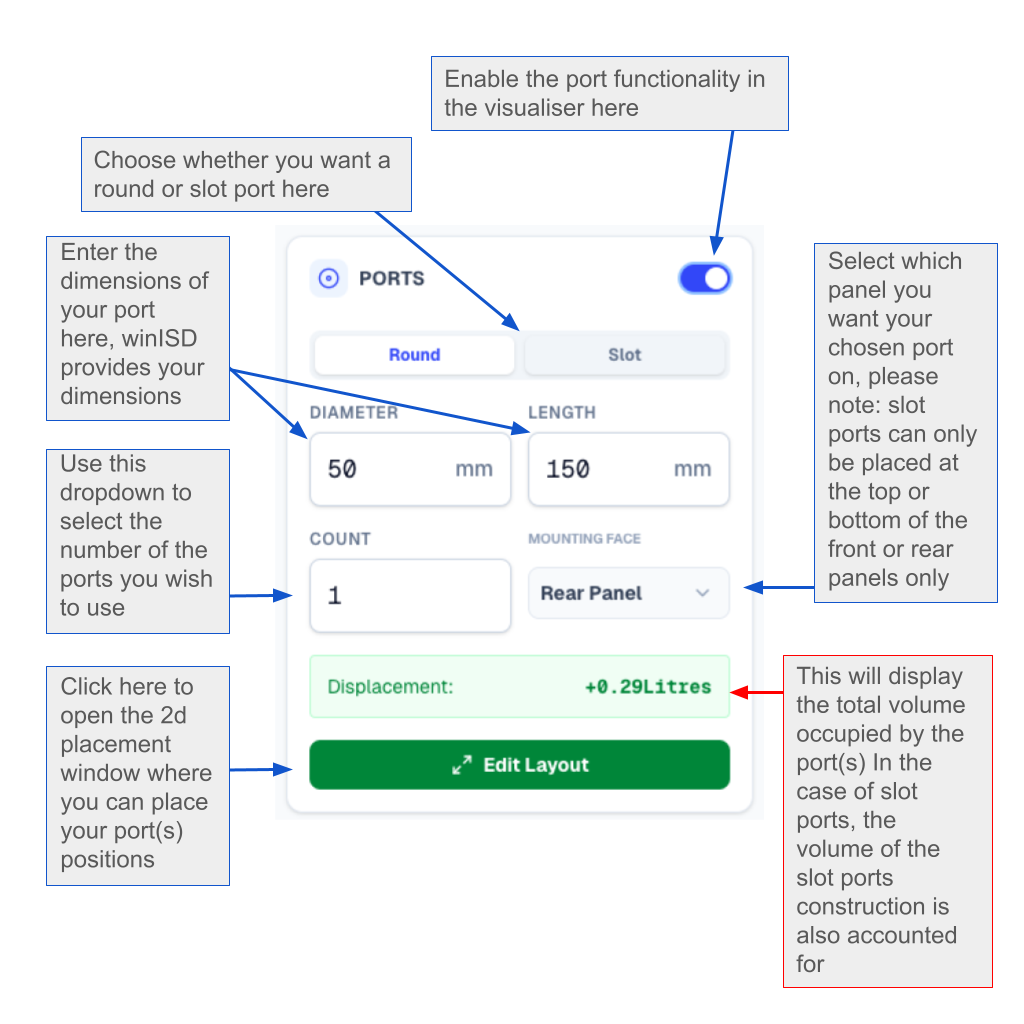
Ports pane
This is where you add the details of your chosen port, slot or round. These dimensions will be derived from winISD or similar and will be fixed to ensure your chosen port tuning frequency, so input them carefully. Regarding the slot port, these will often be derived once you know your internal cabinet width. So, if you choose a different width in Volume-App’s calculator, the slot port values MUST be recalculated in winISD or similar, as a different width or length will affect port tuning frequency. In this respect, some back and forth may need to be done to achieve the perfect size vs. tuning.
Regarding round ports, Volume-App assumes a port of uniform diameter. Many off-the-shelf ports might be tapered or flared, which may affect calculation. An average diameter could be derived from a tapered port by taking the diameters at each end of the tapered section, adding them together, and then dividing them by 2. The figure is the average diameter. This doesn’t account for any flare, however, although any length measurements taken from the port are taken from the outside edges of each taper.
Volume-App assumes the round port is the absolute diameter of the column of air within the port. It does not know the wall material thickness that makes up the port itself, and this is true of winISD’s calculation (there will be many variables of wall material thickness, whether the tubing is cardboard, PVC, or other). To remedy this, measure the thickness of the port, for example, a 2.5mm wall thickness, multiply by 2 (5mm), and then add this to the value derived from winISD or similar. For a 50mm diameter port with a wall thickness of 2.5mm, this would become a port with an outside diameter of 55mm. Enter this into Volume-App. Of course, you may already have the port tube you want to use. winISD will want to know the ID (internal diameter), whereas, for accuracy, Volume-App will want to know the ED (external diameter), which accounts for the absolute displacement of the port material including its column of air.
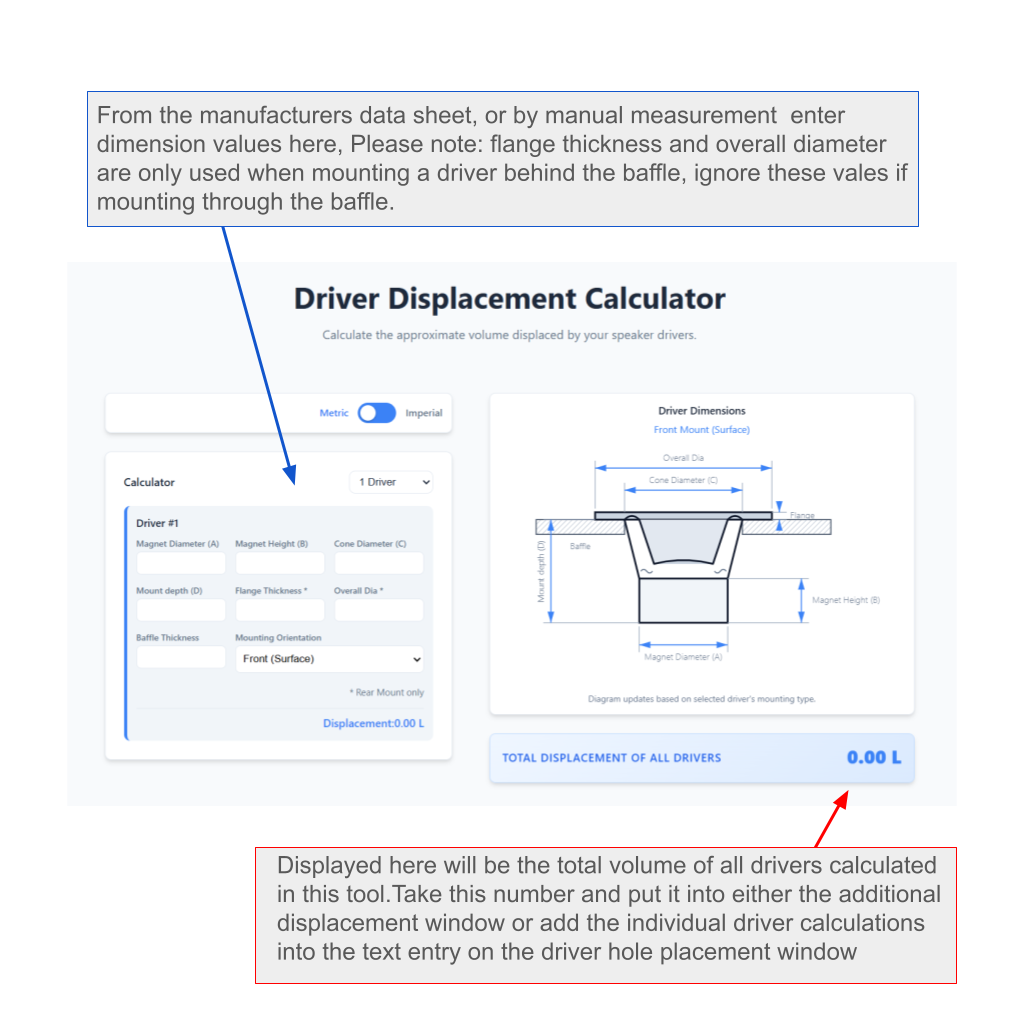
Driver displacement calculator window
Using manufacturer's data or manual measurement, enter the dimensions of the various parts of the loudspeaker driver; this will calculate the approximate volume the driver will displace. (This can only be approximate as many things affect the size and shape: material used in the basket, thickness of material, pole piece vent, and other structures on the driver.) A calculation has been made with an error of up to 15 percent, but this is comparable to other online calculators. Please note that there is an option to calculate the volume displaced by the flange when mounting ‘behind’ a panel as well. Take the data from this tool and add it into the individual driver displacement text entries, or add the combined figures of up to 5 drivers into the Additional displacement pane.
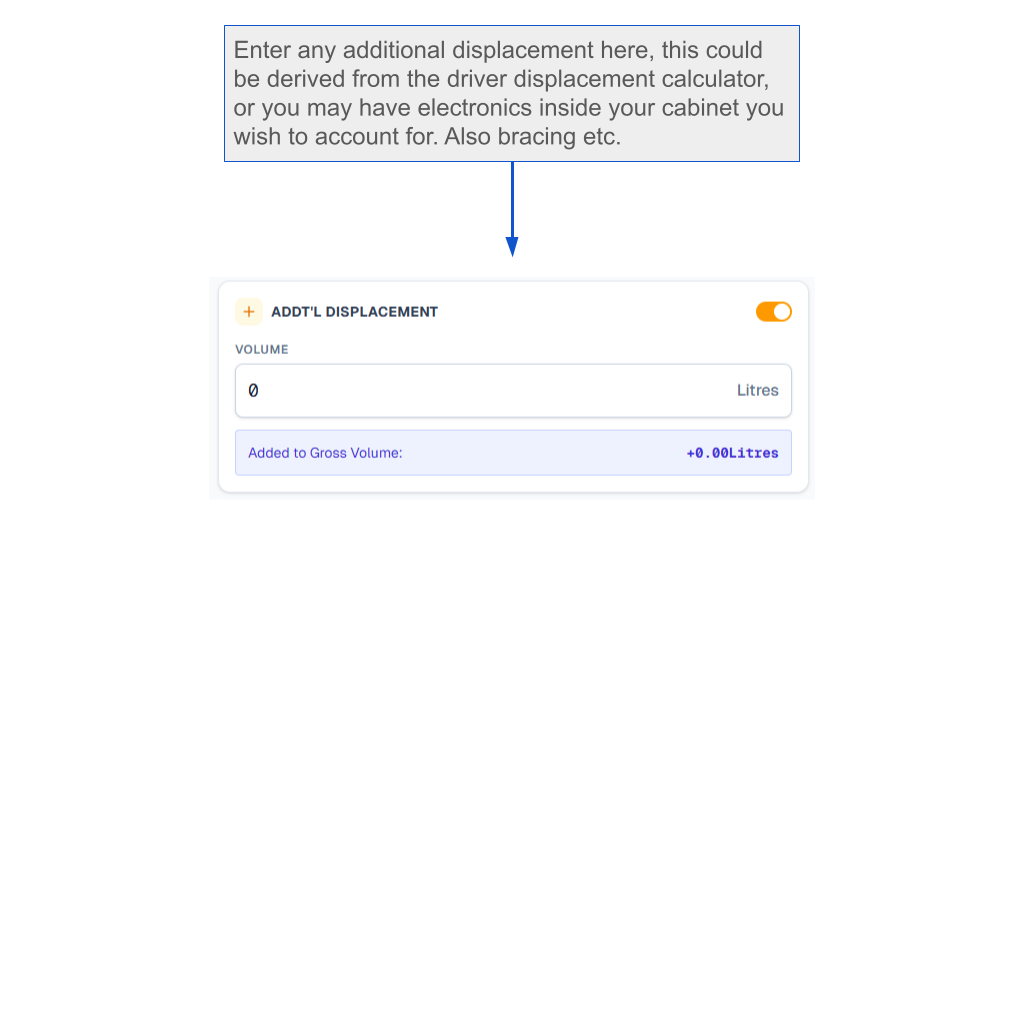
Additional displacement pane
Any displacement value can be entered here to improve the accuracy of your design. You may choose to add the total displacement of your drivers here rather than adding them individually in the driver placement pane, or add the volume taken up by bracing or internal electronics. Volume-App will adjust your design accordingly.
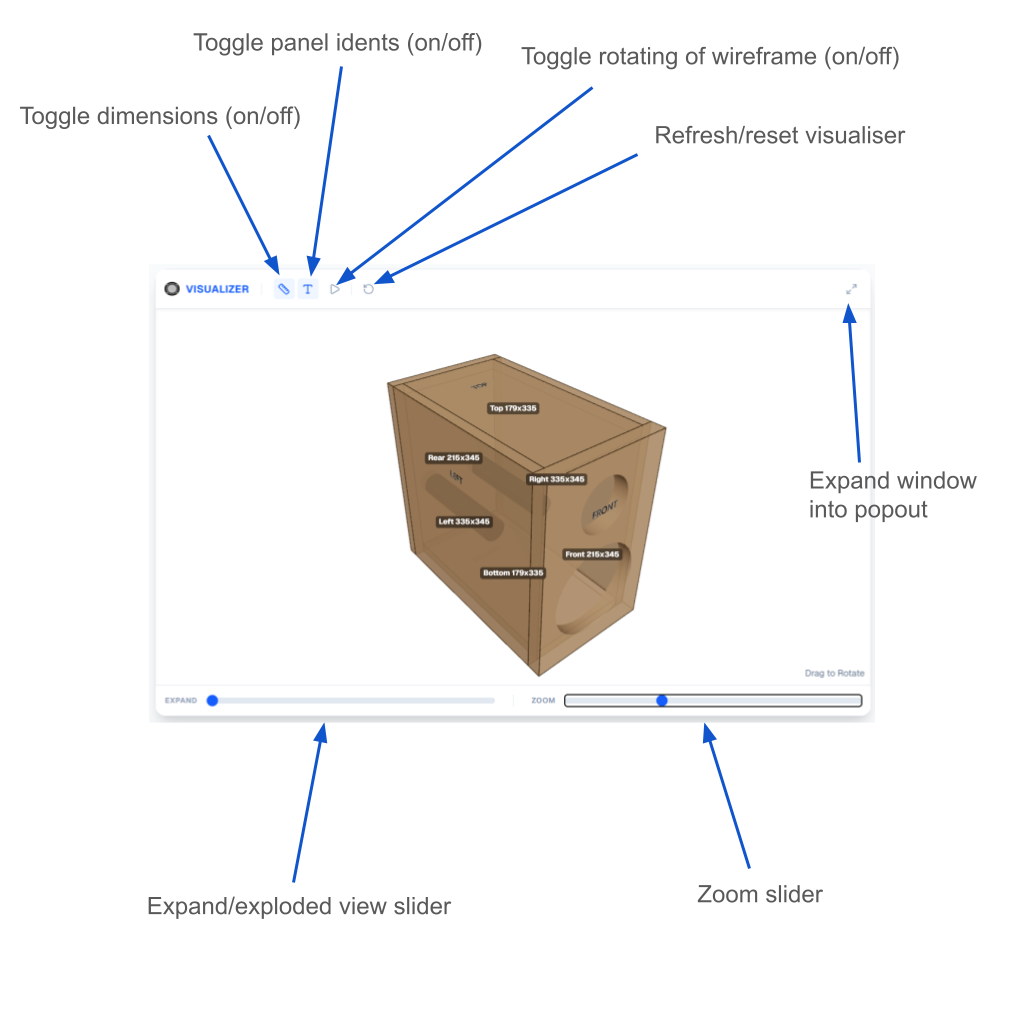
The Visualiser
View your design here, this automatically updates with any changes made elsewhere in Volume-App.
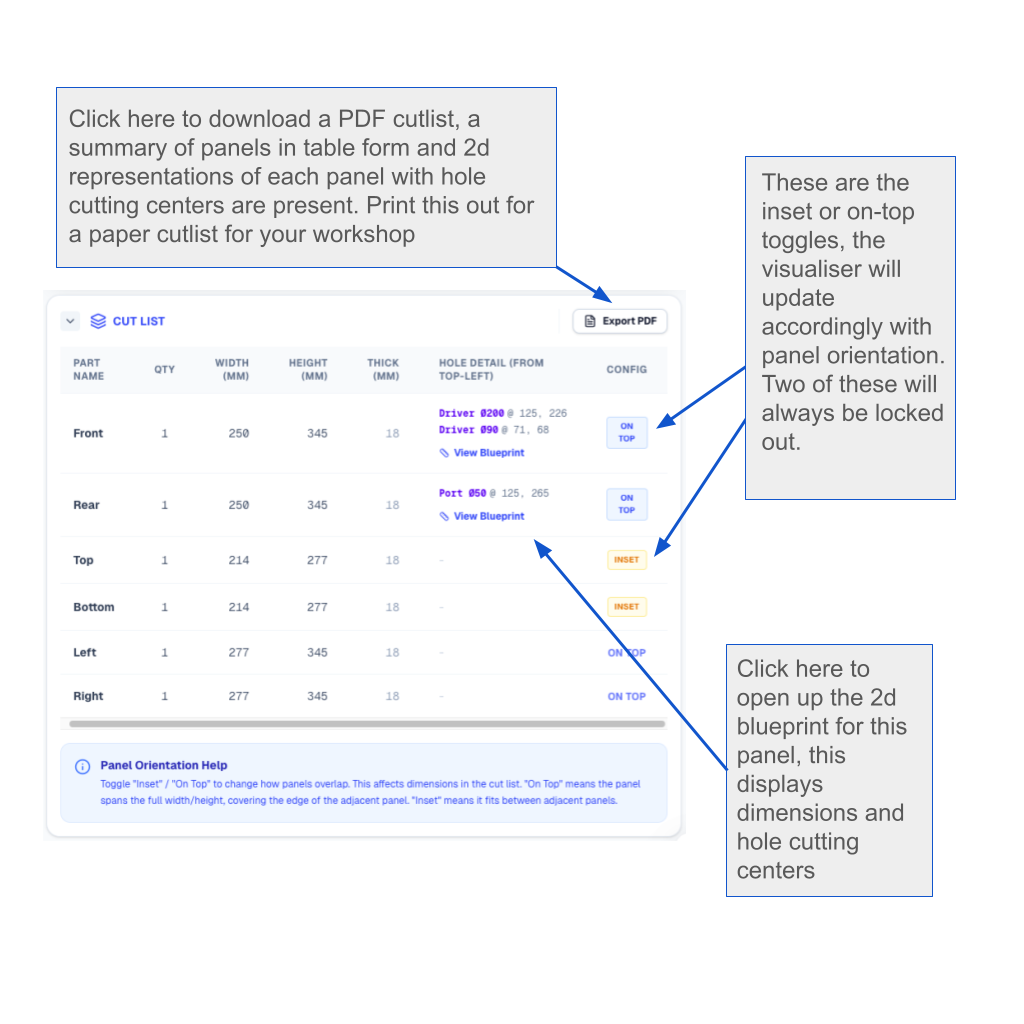
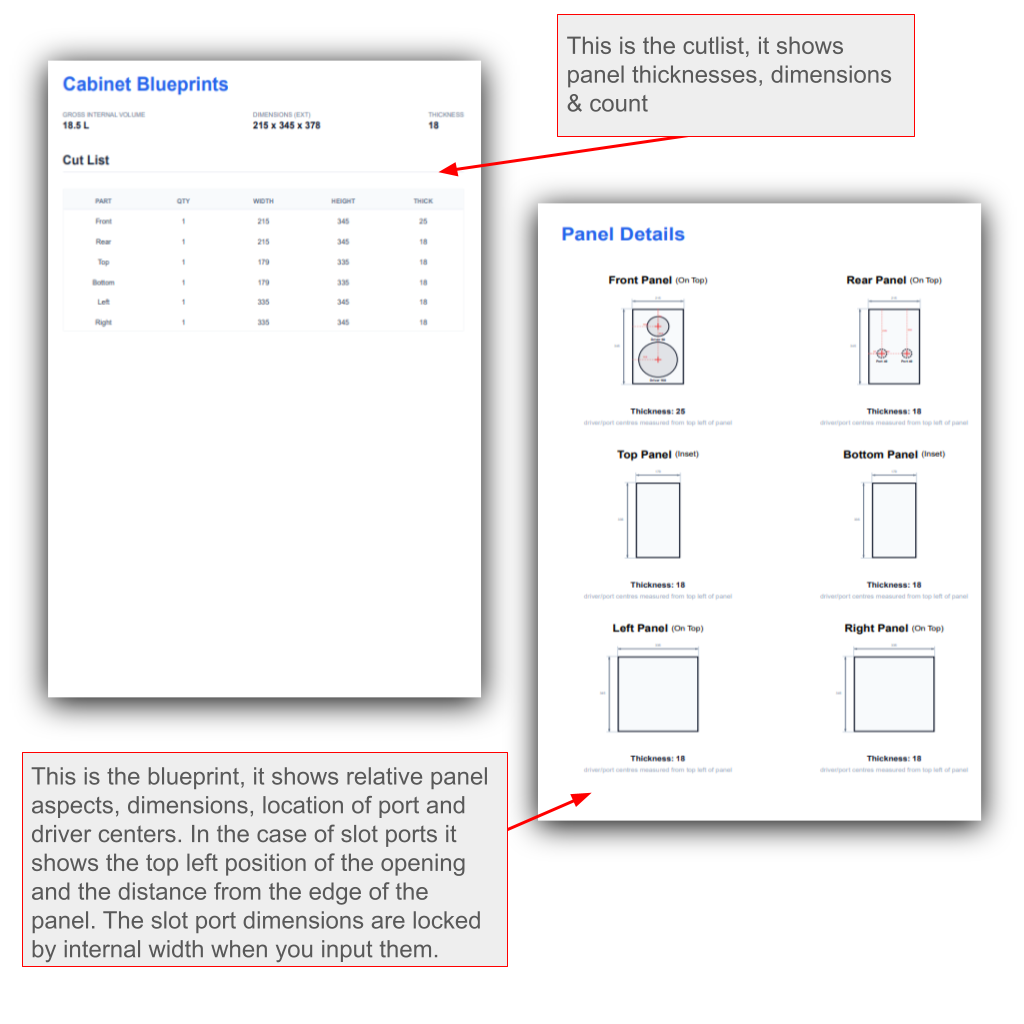
The cutlist/PDF export
Tabulated measurements and options to view blueprints (per panel) or export PDF cutlists to print.